
Ascension by T30 · For the person rebuilding trust · Theme Studio
Make the journal feel like yours.
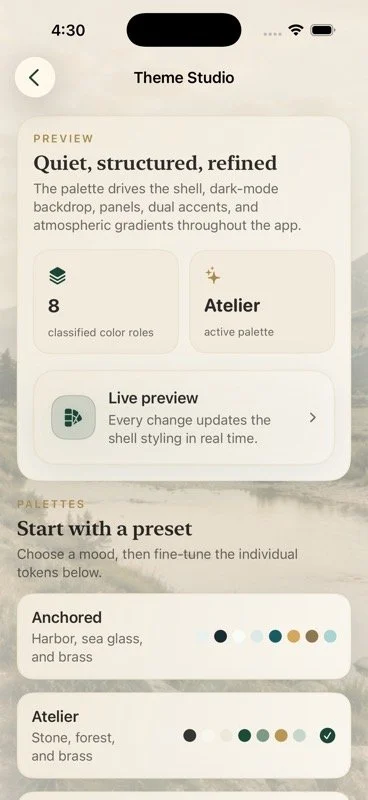
Theme Studio lets you choose a complete visual system, fine-tune the interface palette, control the nature backdrop, and choose how T30 appears on your Home Screen and throughout the app.
Personalization does not do the recovery work. It gives the daily practice a visual identity you chose and can return to.

Start with a complete palette.
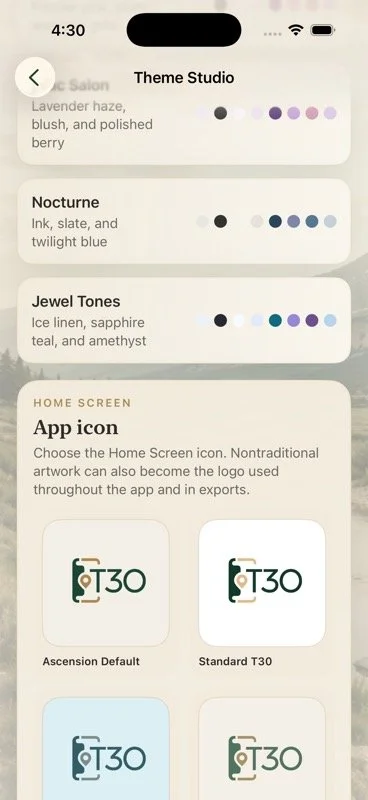
Choose Atelier, Anchored, Sanctuary, Velvet Rose, Lilac Salon, Nocturne, Jewel Tones, or another available preset. The selection updates the app shell, panels, controls, accents, and gradients.
Fine-tune the interface.
Adjust the canvas, dark canvas, surface, field, two accents, ornament, and mist. Keep the preset's nature image behind the app or switch to the minimal gradient.
Carry the mark through the app.
Choose the Home Screen icon. Selected Ascension or Anchored artwork can also appear on the splash screen, inside the app, and in exports when you opt in.
How Theme Studio works
Choose a system, then make it specific.
Every change updates the interface preview in real time. Theme Studio is available in both Ascension and Anchored; this page shows the Ascension experience in Atelier.
- 1 Choose a presetBegin with a coordinated palette instead of building every color from scratch.
- 2 Adjust individual rolesChange the interface layers you care about and review the result as you work.
- 3 Choose the icon and logoPremium icon choices can also supply optional app-wide artwork when the selected design supports it.